Introduction
If you’re here, you’re probably hitting the same wall most people do: Veo 3.1 clips feel too short. You want to know how long they can really go, how to extend them, and where to do it without wasting time. This guide breaks down the Veo 3.1 length limit in plain terms and shows a simple, real‑world way to make longer videos. You will see what the limits are, how “Extend” actually behaves, and how to plan clips so they feel like one continuous story.
If you want to create your first Veo 3.1 clip right now, you can start here: Veo 3.1 text to video.
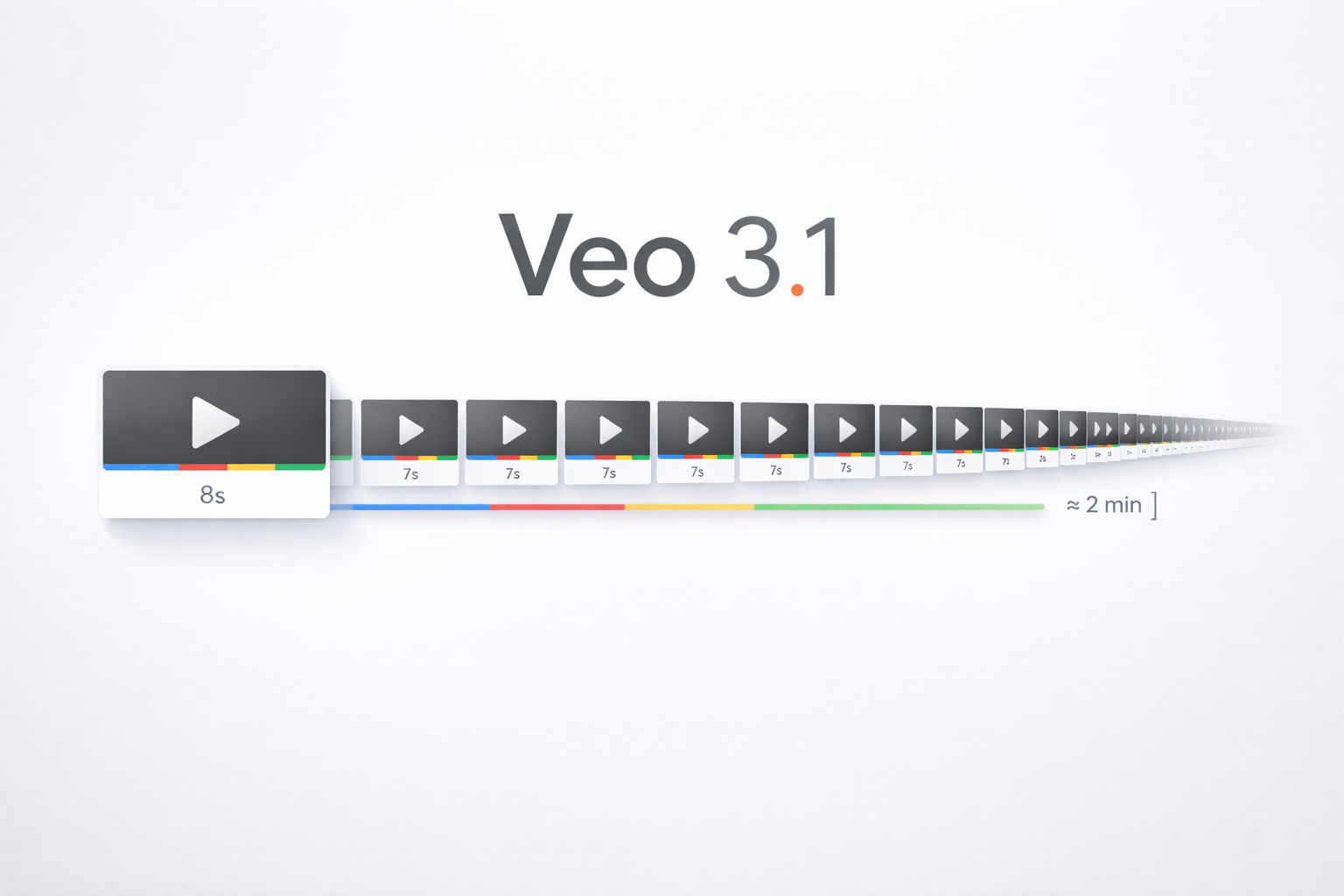
The Real Length Limit in Veo 3.1
Here’s the simple way to read the Veo 3.1 length limit. When people say it, they usually mean two different things:
- One‑clip length: how long a single generation can be.
- Extended length: how long a longer video can become after you add segments.
Veo 3.1 has a strict one‑clip limit, which is why so many creators feel stuck at 8 seconds. Going past that is not a secret toggle. You have to use Extend, which adds time in small steps. Once you separate these two ideas, the whole topic becomes much clearer and the veo 3.1 length limit feels less confusing. Think of Veo 3.1 as a tool for short moments, not full scenes. Build the moments first, then connect them.
The Official Single Clip Length
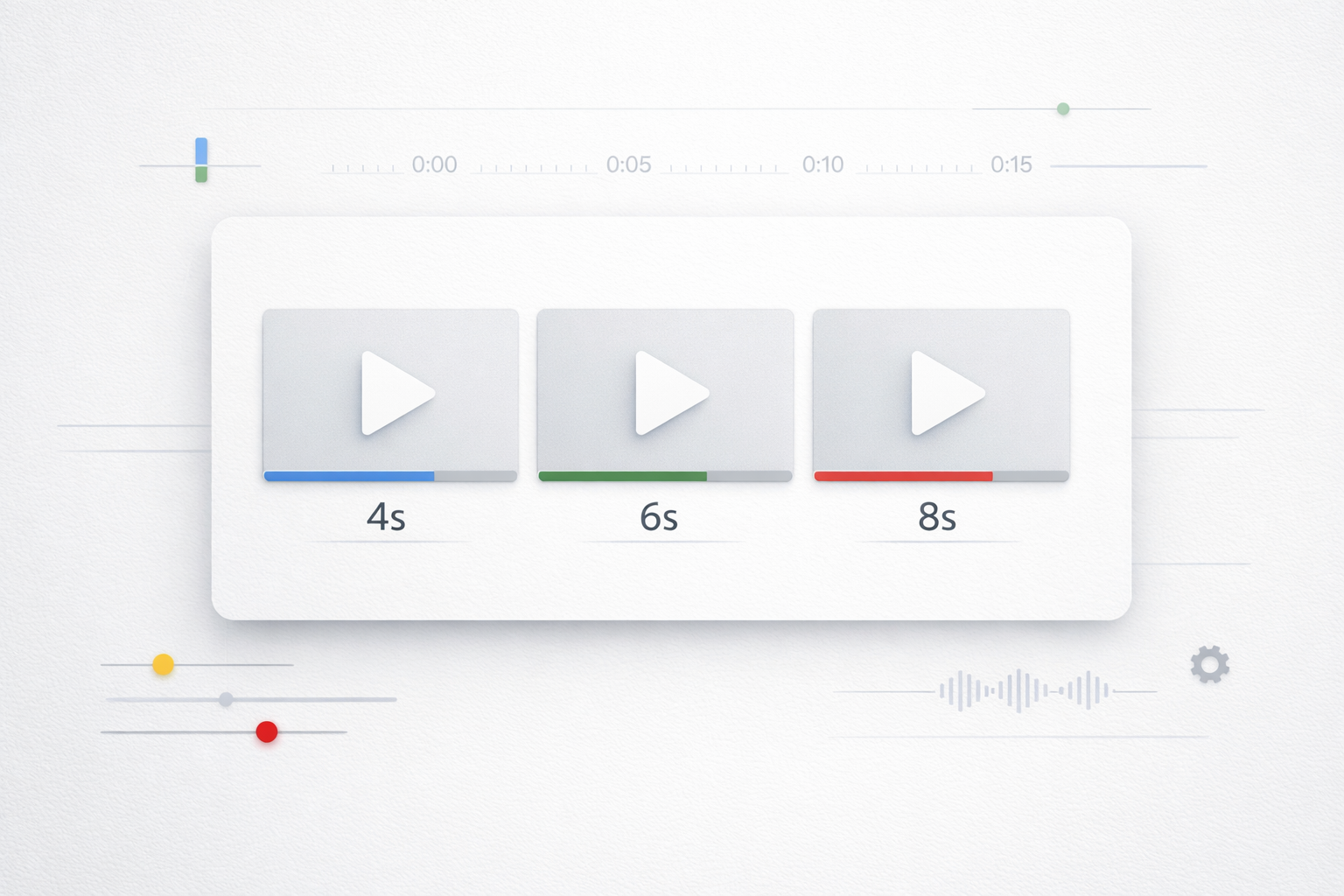
Google lists only three choices for a single clip: 4, 6, or 8 seconds. That means one Veo 3.1 clip never goes past 8 seconds.
This is why so many people search for how to make Veo 3.1 videos longer than 8 seconds. The model is built for short clips, so long videos need multiple clips stitched together.
How Extension Works
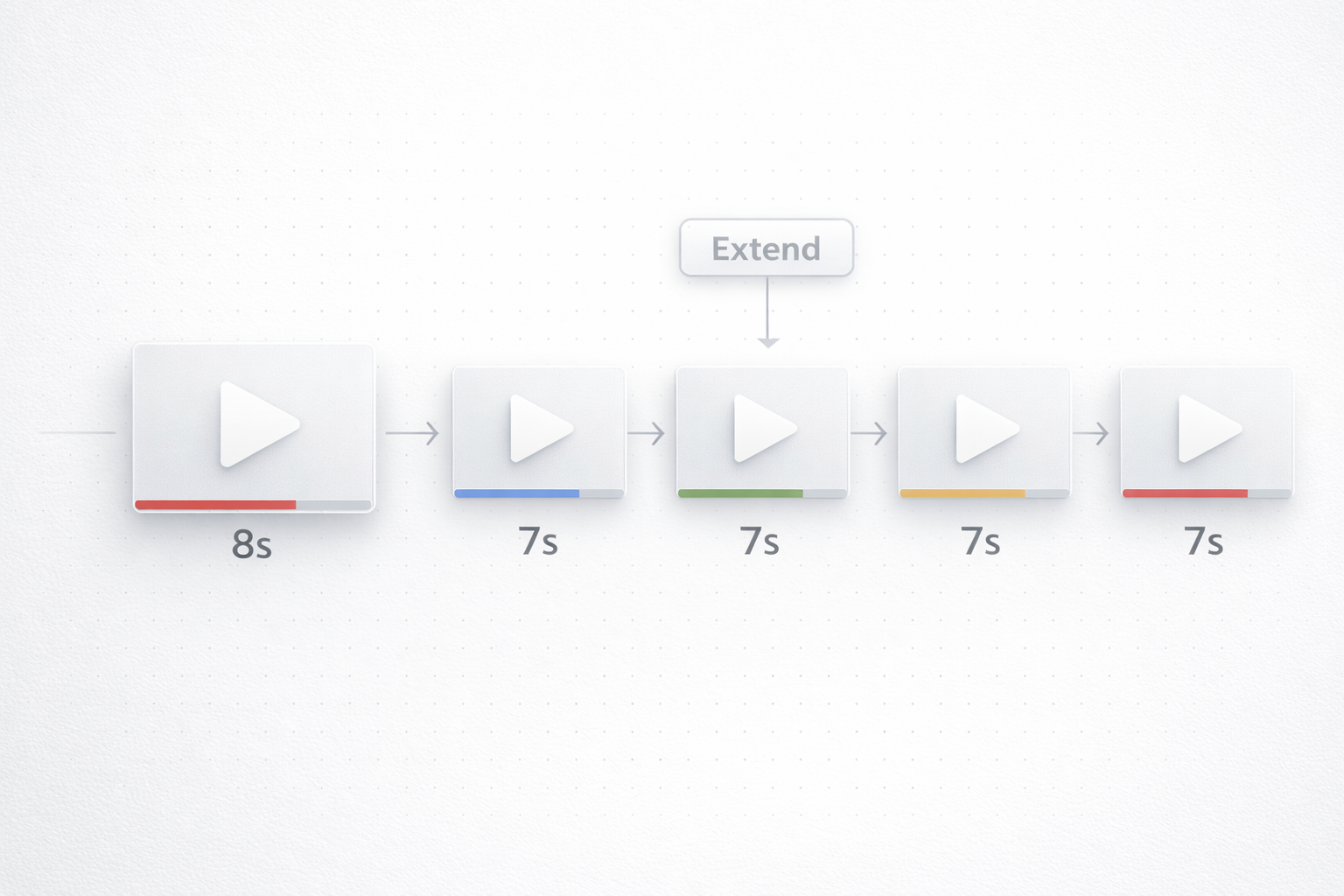
If you want longer videos with Veo 3.1, Extend is the supported path. You generate a short clip, then ask Veo 3.1 to continue it for a fixed amount of time. Think of it like adding another short piece right after the first one.
Here are the extension rules Google lists for Vertex AI:
- Input clips must be MP4 files.
- Input length must be between 1 and 30 seconds.
- Frame rate must be 24 FPS (frames per second).
- Resolution must be 720p or 1080p.
- Aspect ratio must be 16:9 or 9:16.
- Each extension produces a 7‑second output clip at 720p and 24 FPS.
Those rules tell you two important things:
- Extension is step‑by‑step, not one long render.
- Your input must match the required format, or extension will fail.
So when people say they made a longer Veo 3.1 video, what they really did was chain multiple short clips. That is how you get beyond the 8‑second limit without fighting the veo 3.1 length limit. For example, an 8‑second base clip + one 7‑second extension + another 7‑second extension gives you about 22 seconds total across three pieces. You still need to stitch those pieces into one video.
Where You Can Generate Longer Videos
If you are asking “where do I generate longer Veo 3.1 videos,” there are two places Google Cloud points to:
1) Vertex AI Media Studio Google’s console includes a Media Studio interface for Veo. This is where you can generate a clip and then extend it within the same workflow.
2) Vertex AI API The same extension workflow is available via the API for developers who want programmatic control.
If you want the simplest path, you can generate and extend Veo 3.1 videos directly on our site: Create and extend a Veo 3.1 video.
A Simple Workflow to Go Longer
Here is a simple workflow that works with the limits and keeps your video consistent:
Before you start, write a one‑sentence summary of the story you want. This keeps your prompts focused and helps each short clip feel like part of the same Veo 3.1 video, instead of a random collection of shots.
1) Plan in short beats
Treat your long video as a series of short scenes. For example: opening, action, reaction, and closing. Each beat should fit in 7 to 8 seconds so it lines up with the base clip and extension lengths. A quick one‑line shot list helps a lot.
2) Generate a clean base clip
The end of your base clip matters. If it ends on a clear pose or stable moment, the extension looks more natural. Avoid endings that are mid‑action if you want smoother continuity.
3) Extend in small steps
Use extension to add 7 seconds at a time. Each new segment continues from the previous one, so small changes make a big difference.
4) Keep the style consistent
Repeat key style words like lighting, camera movement, and visual tone across all segments. This reduces visible jumps between clips. If your character or setting changes, say so clearly; otherwise keep it the same.
5) Stitch and polish
Even with good extension, you are still combining separate segments. A simple cut or fade can smooth out small inconsistencies and make the final video feel unified.

Limits You Should Expect
The Veo 3.1 length limit does not mean you are stuck with short videos, but it does set real boundaries:
- A single clip is 4, 6, or 8 seconds.
- Extension outputs are fixed at 7 seconds per step.
- Extension inputs must match strict format requirements.
These limits are why long videos require a planned workflow. If you try to treat Veo 3.1 like a one‑click long video tool, you will get frustrated. If you treat it like a short‑clip generator that can be extended, you will get much better results. Also expect small shifts in motion or lighting between clips and plan for quick cuts where needed.
Quick Answers
Can Veo 3.1 create a single long video in one go? No. Veo 3.1 generates short clips, and Extend is the supported way to go longer.
Is the 8 second limit always true? For a single generation, yes. Google lists 4, 6, or 8 seconds for Veo 3.1.
Why do some people say they can go longer? Because they are chaining extensions or using a product surface that exposes the extend feature.
Where should I start if I just want to test? Generate a short clip first, then explore extension where available. That simple start saves a lot of time.
Conclusion
The Veo 3.1 length limit is real, but it is not a dead end. A single clip tops out at 8 seconds, and the way to go longer is to extend the video in short steps. Once you design your video around short beats, the process becomes much easier and much more reliable. With a little planning, those short clips add up fast.